LPB Piso WiFi 10.0.0.1 Pause Time Login, Admin & Troubleshooting Guide
If you’re looking for LPB Piso WiFi, you may be trying to connect to a machine, access the 10.0.0.1 LPB Piso WiFi portal, pause your remaining time, resume a session, or log in to the admin dashboard.
LPB Piso WiFi is a specific vending-WiFi software system rather than a generic name for every Piso WiFi machine. The current LPB 2.0 platform is cloud-connected and supports features such as session-time synchronization, coin payments, GCash and Maya payments, remote monitoring, vouchers, bandwidth controls, and multiple hardware platforms.
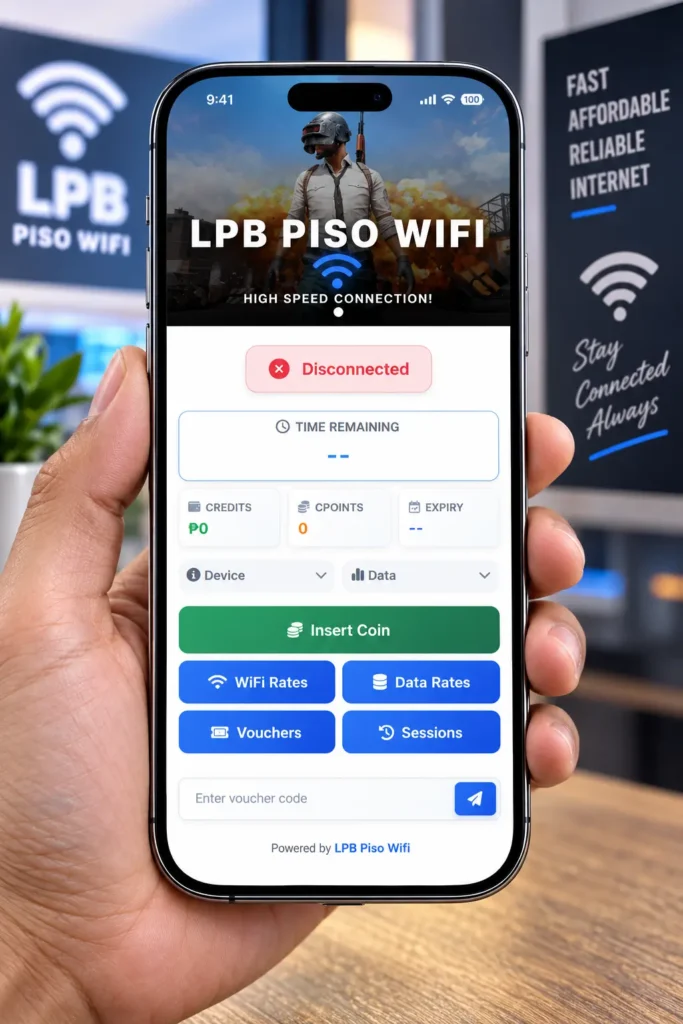
LPB Piso WiFi at a Glance
| Feature | What it means |
|---|---|
| LPB Piso WiFi | A branded vending-WiFi software platform |
| LPB 2.0 | Current LPB platform highlighted on the official site |
| 10.0.0.1 | Common local portal address associated with Piso WiFi installations |
| Pause Time | Lets an eligible user stop the countdown temporarily |
| Payments | Coins, with GCash and Maya supported by LPB 2.0 |
| Remote monitoring | Manage supported machines through LPB’s cloud platform |
| Vouchers | Create prepaid WiFi access codes |
| Hardware | Supports Raspberry Pi, Orange Pi, PC and several router/Android-box platforms |
Note: These figures (420K active machines, 21 distributors, 33.8K community members) are published by LPB on its official website. They are company-reported claims and have not been independently audited or verified by a third party.
What Is LPB Piso WiFi?
LPB Piso WiFi is software used to operate and manage vending-style WiFi systems. Customers can purchase internet access through a machine, while the operator can configure rates, sessions, network controls and other services.
The current LPB 2.0 platform goes beyond simple coin-operated access. Its official feature list includes:
- Coin-operated WiFi
- Cloud-based session-time synchronization
- Remote machine monitoring
- Bandwidth and traffic control
- Voucher management
- PPPoE
- GCash and Maya e-payments
- E-loading and cash-in
- Multi-subvendo VLAN functionality
- Piso Net
- Phone rental
- Customizable captive-portal themes
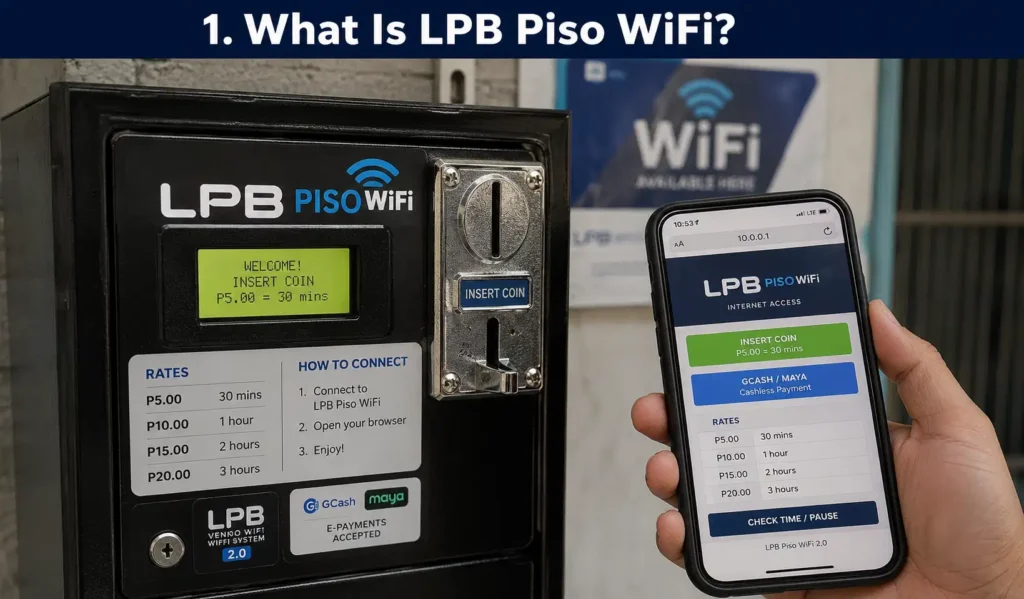
That distinction matters because LPB Piso WiFi is the software/platform, while the physical vending machine can be built around different supported hardware.
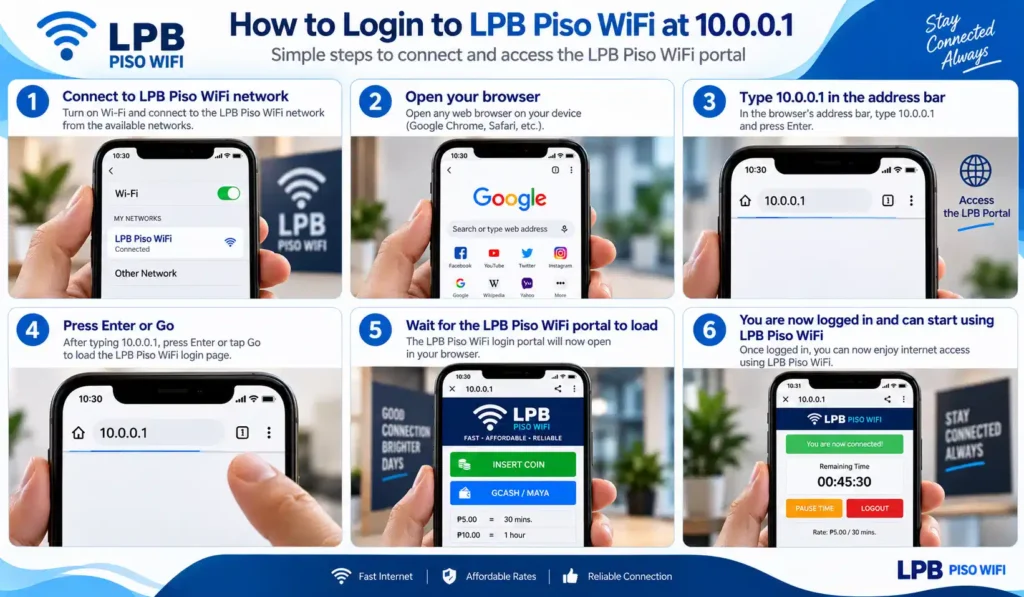
How to Login to LPB Piso WiFi at 10.0.0.1
For a customer using an LPB machine, the local portal is commonly accessed through:
The important part is that this is a local network address, not a normal website. You generally need to be connected to the Piso WiFi network before the address can work.
To open the LPB Piso WiFi portal:
- Open WiFi settings on your phone, tablet or laptop.
- Connect to the LPB Piso WiFi network.
- Open Chrome, Safari or another browser.
- Type 10.0.0.1 directly into the browser’s address bar.
- Press Enter or Go.
- Wait for the Piso WiFi portal to load.
If the portal doesn’t appear, don’t search Google for 10.0.0.1. Enter the address directly into the browser’s address bar.
What can you see on the customer portal?
Depending on the machine’s configuration, the portal may show your active session, remaining time, payment options and controls such as Pause Time or Resume Time.
The exact interface can differ because LPB installations may use different versions, configurations and supported hardware.
What Is LPB Piso WiFi Pause Time?
LPB Piso WiFi pause time is a session-control feature that allows a customer to stop their active browsing timer temporarily.
For example, suppose you purchased 60 minutes and have used 20 minutes. If the machine has pause functionality enabled and you pause the session, the remaining time can be preserved instead of continuing to count down while you’re away.
The important distinction is:
Pause Time does not give you additional internet time. It temporarily stops the session countdown.
LPB specifically says that its cloud session system stores customer session time in the LPB Cloud and keeps remaining time synchronized across LPB Piso WiFi machines. LPB says customers can pause and resume their sessions from anywhere in the Philippines.
That cloud-sync capability is an important difference from older assumptions that a paused session necessarily has to remain tied to one local machine.
How to Pause LPB Piso WiFi Time
If the machine operator has enabled the feature, pausing your session is straightforward.
Follow these steps:
- Connect to the LPB Piso WiFi network.
- Open your browser.
- Go to 10.0.0.1.
- Wait for the customer portal to load.
- Make sure you have an active session.
- Look for Pause Time or a similar pause control.
- Tap or click the button.
- Confirm that the timer has stopped.
Once paused, your internet access may be suspended while the session remains stored for later use.
What if there is no Pause Time button?
Usually, this doesn’t mean your phone is broken.
The feature may be:
- Disabled by the machine operator
- Restricted by the machine’s configuration
- Unavailable on that particular installation
- Presented under a different interface or label
A customer generally cannot turn on an operator-controlled feature from the customer portal.
How to Resume LPB Piso WiFi After Pausing
When you’re ready to continue browsing:
- Reconnect to the relevant Piso WiFi network if necessary.
- Open your browser.
- Enter 10.0.0.1.
- Find your paused session.
- Select Resume Time, Resume, or the equivalent button.
- Confirm that your countdown has started again.
The exact button name depends on the portal version.
Does pausing add more minutes?
No. If you had 40 minutes remaining when you paused, the purpose of the feature is to preserve those remaining minutes. It doesn’t turn 40 minutes into 50 or 60 minutes.
LPB Piso WiFi Pause Time on Android
If you’re using an Android phone, the process is essentially the same:
- Connect to the LPB Piso WiFi network.
- Open Chrome.
- Enter http://10.0.0.1.
- Open your active session.
- Tap Pause Time.
- Return to the portal later and select Resume.
If the portal doesn’t load, first check whether your phone is actually connected to the Piso WiFi network.
Turn off mobile data when troubleshooting
If your phone keeps using cellular data instead of the local WiFi connection, the browser may not reach the local Piso WiFi portal.
Try:
- Turning off mobile data temporarily
- Reconnecting to the Piso WiFi network
- Opening the address directly
- Trying an incognito/private browser window
- Forgetting and reconnecting to the WiFi network
LPB Piso WiFi 10.0.0.1 vs 10.0.0.0.1
This is an important distinction because both versions appear in search queries.
The commonly referenced address is:
10.0.0.1, not 10.0.0.0.1
An IPv4 address has four numerical sections separated by three dots. 10.0.0.0.1 contains five sections, so it isn’t a valid IPv4 address.
So if you’re searching for:
- 10.0.0.1 LPB Piso WiFi
- LPB Piso WiFi 10.0.0.1
- LPB Piso WiFi 10.0.0.1 pause time
- LPB Piso WiFi 10.0.0.1 login
Start with 10.0.0.1.
However, don’t assume every installation uses exactly the same local address. If an operator has configured a different gateway, the correct address may be different.
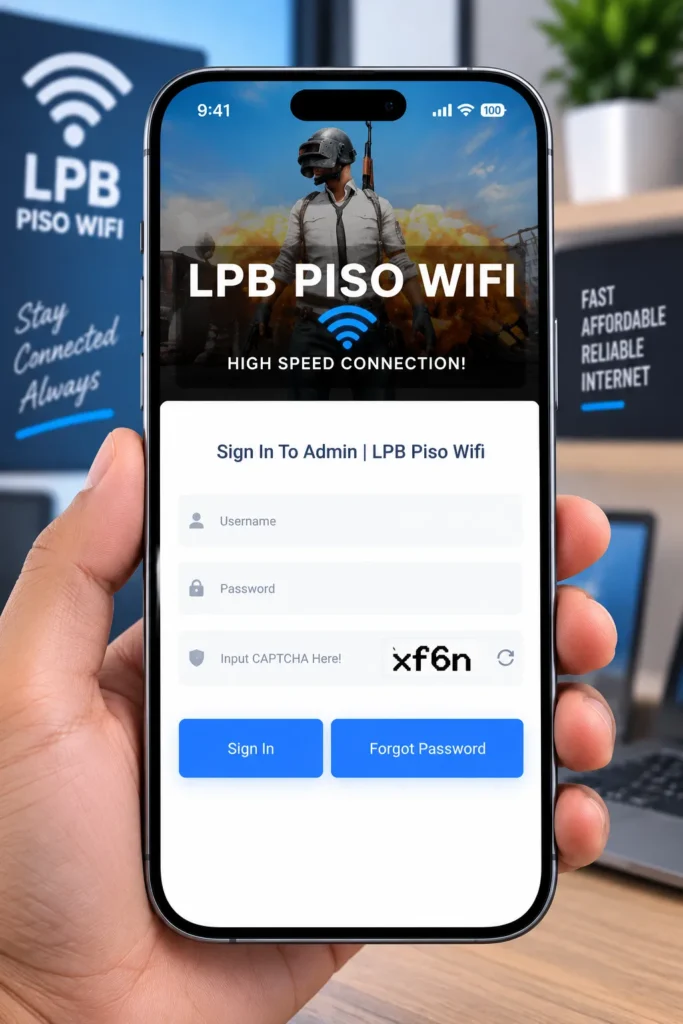
LPB Piso WiFi Admin Login
There is a difference between the customer portal and the administrator interface.
For installations using the commonly reported setup, the administrator interface is reached by adding /admin:
http://10.0.0.1/admin
This is intended for the machine owner or administrator rather than an ordinary customer.
What can an LPB admin manage?
The current LPB platform provides much broader management functionality than simply pausing a user’s timer. Its official platform includes remote monitoring, sales and earnings tracking, bandwidth controls, vouchers, PPPoE, payment integrations and machine management.
Depending on the version and configuration, an operator may manage things such as:
- Session and timer settings
- User access
- Network configuration
- Bandwidth controls
- Vouchers
- Payment options
- Connected machines
- Sales and transaction information
- Remote monitoring
- Other system settings
What Is the LPB Piso WiFi Admin Password?
This is one area where you should be careful with information found online.
Various third-party websites repeatedly publish a supposed default combination of:
- Username:
admin - Password:
123456789
However, LPB’s current official website does not publish this default credential on the pages I could verify. Because of that, I would not present admin / 123456789 as a guaranteed universal LPB default.
If you’re the owner of an LPB machine:
- Check the documentation supplied with your machine.
- Check information from your distributor.
- Use credentials you previously configured.
- Contact the appropriate LPB/distributor support channel if necessary.
- Avoid resetting the machine unless you understand what configuration will be lost.
Why you shouldn’t blindly use a published default password
A password appearing on multiple SEO websites doesn’t make it authoritative. The same unsupported credential can be copied from one article to another until it looks legitimate.
For an admin account, that’s especially risky.
If you successfully access an administrator account using a factory/default credential, change it to a strong, unique password.
LPB Piso WiFi Dashboard
The LPB 2.0 platform has a cloud dashboard for managing supported machines and associated services.
The official dashboard currently includes areas such as:
- Dashboard
- Machines
- Machine Centralized
- Licenses
- Send Credit
- E-loading history
- Cash-in wallet
- E-payments
- Phone rental
The official LPB site also describes real-time transaction and license information and built-in remote monitoring without requiring third-party tools such as NGROK.
This is separate from the simple customer-facing portal at the local network address.
How LPB Cloud Session Time Works
One of the more useful LPB 2.0 features is its LPB Cloud Session Time system.
According to LPB, customer session time is stored in the LPB Cloud. The remaining time stays synchronized across LPB Piso WiFi machines, and customers can pause and resume their sessions from different LPB machines in the Philippines.
That means the old assumption that every paused session must remain on the same physical vendo isn’t necessarily correct for LPB 2.0.
Example
You purchase a session and use part of your time.
Before leaving:
- Purchased: 60 minutes
- Used: 20 minutes
- Remaining: 40 minutes
- Session: Paused
When you later return to an LPB machine that supports the cloud session system, the remaining session can be synchronized according to LPB’s system.
This is one reason it’s useful to distinguish LPB 2.0 from generic Piso WiFi systems.
What to Do If 10.0.0.1 Is Not Opening
If 10.0.0.1 LPB Piso WiFi isn’t loading, work through these checks in order.
1. Make sure you’re connected to the Piso WiFi network
The address is local. If you’re connected only to your home WiFi or cellular network, you shouldn’t expect the LPB portal to appear.
2. Type the address directly
Enter: http://10.0.0.1
Don’t type it into Google.
3. Check for typing mistakes
Common mistakes include:
10.0.0.0.110.0.0.1.com10.00.0.1- Adding spaces
- Using an unrelated IP address
4. Temporarily disable mobile data
On a phone, cellular data can interfere with how the device handles local connectivity.
5. Reconnect to WiFi
Forget the Piso WiFi network, reconnect, then try again.
6. Try another browser
Chrome, Safari, Firefox or another browser can help determine whether the problem is browser-specific.
7. Try an incognito/private window
Cached portal information can sometimes cause problems with captive portals.
8. Ask the operator
If the network works but the portal still doesn’t appear, the machine itself may have a configuration or connectivity issue.
Why Is LPB Piso WiFi Pause Time Not Working?
If you’re connected but Pause Time isn’t working, identify which situation you’re facing.
| Problem | Possible explanation |
|---|---|
| Pause button is missing | Operator may have disabled it |
| Portal won’t open | Local network or connectivity issue |
| Timer doesn’t stop | Portal/system configuration problem |
| Session doesn’t appear | Session may no longer be active or recognized |
| Resume doesn’t work | Session state or system configuration may be involved |
| Time appears incorrect | Machine/software synchronization issue |
| Everything stopped working | Machine or internet connection may be offline |
Don’t immediately assume the solution is to reset the machine.
For customers, the safest first step is to reconnect and reopen 10.0.0.1. If the pause feature itself is unavailable, contact the vendo owner.
LPB Piso WiFi Hardware Options
LPB isn’t restricted to one physical machine design.
The official platform currently lists multiple hardware options, including:
- Raspberry Pi 3/4
- Raspberry Pi 5
- Orange Pi One/PC
- Orange Pi Zero 3
- Orange Pi 5
- Newifi 3 D-2
- Newifi D2
- PC/mini PC
- MXQ Android Box
- Ruijie EW1200G PRO
- Linksys EA8300
LPB describes Raspberry Pi boards as its more reliable and better-performing option compared with Orange Pi boards, while noting that Orange Pi can be less expensive.
That makes the hardware decision less about finding a single “LPB router” and more about choosing a supported platform that fits the intended deployment.
LPB Piso WiFi License Pricing
LPB’s official pricing can change, so check the current license page before purchasing.
At the time of this research, the official LPB site lists:
| License | Current promotional price shown | Validity |
|---|---|---|
| Lite | ₱250 | 1 year |
| Premium | ₱500 | 1 year |
| Lifetime V2 | ₱900 | Lifetime |
The official license shop currently lists the Lite license with a 50-user limit and one sub-account, while Premium provides unlimited users and sub-accounts. The site separately lists a Lifetime V2 option.
Because promotional pricing can change, treat these figures as current listed prices rather than permanent rates.
LPB Piso WiFi Lite vs Premium
For someone considering an LPB setup, the main difference is capacity and included functionality.
| Lite | Premium | |
|---|---|---|
| Users | 50-user limit | Unlimited |
| Sub-accounts | 1 | Unlimited |
| Validity | 1 year | 1 year |
| Remote monitoring | Yes | Yes |
| VLAN features | Yes | Yes |
| PPPoE | Yes | Unlimited PPPoE |
| E-loading/cash-in | Yes | Yes |
| GCash & Maya | Yes | Yes |
| PisoNet | Yes | Supported |
| Phone rental | Yes | Supported |
These are based on LPB’s currently published license descriptions.
For a small deployment, Lite may be enough. An operator planning multiple users, sub-accounts or larger-scale operation may have more reason to consider Premium.
LPB Piso WiFi Payments: Coins, GCash and Maya
Traditional Piso WiFi machines are associated with coin-operated access, and LPB supports automatic coin-slot integration.
But LPB 2.0 also supports GCash and Maya direct payments, allowing customers to pay without inserting coins.
This gives operators two broad payment approaches:
- Physical payment: Coins
- Cashless payment: GCash and Maya
The availability of a particular payment method can depend on the machine’s configuration and enabled licenses/services.
LPB Piso WiFi Voucher System
LPB also includes a voucher system.
Operators can create WiFi vouchers with custom time or data limits, making vouchers useful for businesses, resellers and other prepaid-access scenarios.
Instead of relying exclusively on the coin slot, an operator can use voucher-based access where appropriate.
Should You Start an LPB Piso WiFi Business?
If you’re researching LPB Piso WiFi because you want to operate a vendo business, don’t focus only on the software license.
You’ll also need to consider:
- Hardware
- Internet service
- WiFi coverage
- Location
- Power reliability
- Coin-slot hardware, if applicable
- Payment setup
- Customer demand
- Bandwidth requirements
- Maintenance
- Machine security
- Licensing and distributor support
LPB’s current platform is designed for more than basic coin access, with remote monitoring, bandwidth management, payments, vouchers and additional modules.
The best setup therefore depends on the location and the number of customers you expect rather than simply choosing the cheapest hardware.
Frequently Asked Questions
Conclusion
If your immediate goal is simply to use an LPB machine, start with 10.0.0.1:
Connect → Open browser → Enter 10.0.0.1 → Check your session → Pause or Resume if available.
If you’re an operator, the picture is broader. LPB Piso WiFi 2.0 is a cloud-connected management platform with session synchronization, remote monitoring, bandwidth controls, vouchers, GCash/Maya payments and support for several hardware configurations.
And if you’re researching LPB Piso WiFi admin passwords, avoid blindly publishing an alleged default as fact. The current official source doesn’t verify the commonly repeated admin / 123456789 credential, so the responsible approach is to use your machine’s documentation or distributor information and change any factory/default password after gaining authorized access.