192.168.100.1 – 192.168.I00.1
192.168.100.1 is a private default gateway IP address used by many routers and modems to open the admin login page. To access it, connect your device to the router’s WiFi or LAN, type http://192.168.100.1 in your browser’s address bar, and log in with the default username and password (usually admin/admin) printed on the router’s label. From there you can change your WiFi name, password, and other network settings.
What Is 192.168.100.1?
192.168.100.1 is a private IP address used as the default gateway on many home and office routers. It is not a public internet address – it only works on your local network (LAN), meaning you can only reach it while connected to that specific router’s WiFi or Ethernet cable.
This address falls inside the 192.168.0.0/16 private IP range defined by RFC 1918, a block of addresses reserved for internal networking use. That’s why the same 192.168.100.1 address can exist on millions of routers worldwide – in Karachi, Lahore, Manila, or Cebu – without ever conflicting with each other, since it’s never routed over the public internet.
Is 192.168.100.1 the Same in Pakistan and the Philippines?
Yes. Since 192.168.100.1 is a private, locally-used address, it works exactly the same way regardless of your country or ISP. What differs is which routers and providers actually use it as their default:
- In Pakistan, 192.168.100.1 commonly shows up on cable/fiber modems and gateway-router combo units supplied by internet providers, as well as on hardware from brands like Zyxel, TP-Link, and Huawei.
- In the Philippines, this address is frequently seen on modem-router units from providers, and on standalone WiFi vendo and piso WiFi setups that use a similar private-IP structure for their admin/coin-slot control panel (though most Piso WiFi machines default to 10.0.0.1 rather than 192.168.100.1 – more on that comparison below).
If 192.168.100.1 doesn’t open your specific device’s admin page, don’t worry – the troubleshooting section further down covers exactly what to do next.
Why Do Some Routers Use 192.168.100.1 Instead of 192.168.1.1?
Most consumer routers default to 192.168.1.1 or 192.168.0.1, so 192.168.100.1 can look unfamiliar. It shows up most often on:
- Cable modem/router combo units supplied directly by ISPs
- Gateway devices that bundle modem and router functions into a single box
- Specific manufacturer defaults, including hardware from Arris, Motorola, Zyxel, Netgear (particularly cable modems), TP-Link, and Huawei
Manufacturers often choose 192.168.100.1 deliberately, since it’s less crowded than 192.168.1.1, which reduces the chance of an IP conflict when a modem and a separate router share the same network – a very common setup with ISP-supplied equipment in both Pakistan and the Philippines.
What You Need Before Logging In to 192.168.100.1
- A device (phone, laptop, or desktop) connected to the router’s WiFi network, or plugged into a LAN port with an Ethernet cable
- A web browser – Chrome, Safari, Firefox, or Edge all work
- The router’s default username and password, printed on a sticker on the router or listed in its manual
You do not need an active internet connection to reach the 192.168.100.1 admin login page – it’s served locally by the router itself, which is useful when troubleshooting a connection that’s already down.
How to Login to 192.168.100.1 – Step-by-Step
On Windows or Mac
- Connect your computer to the router’s network, either over WiFi or with an Ethernet cable.
- Open any browser and click directly into the address bar at the top – not the search box.
- Type
http://192.168.100.1exactly as shown and press Enter. Includinghttp://matters, since some browsers forcehttps://on bare IP addresses, which fails on local router pages.
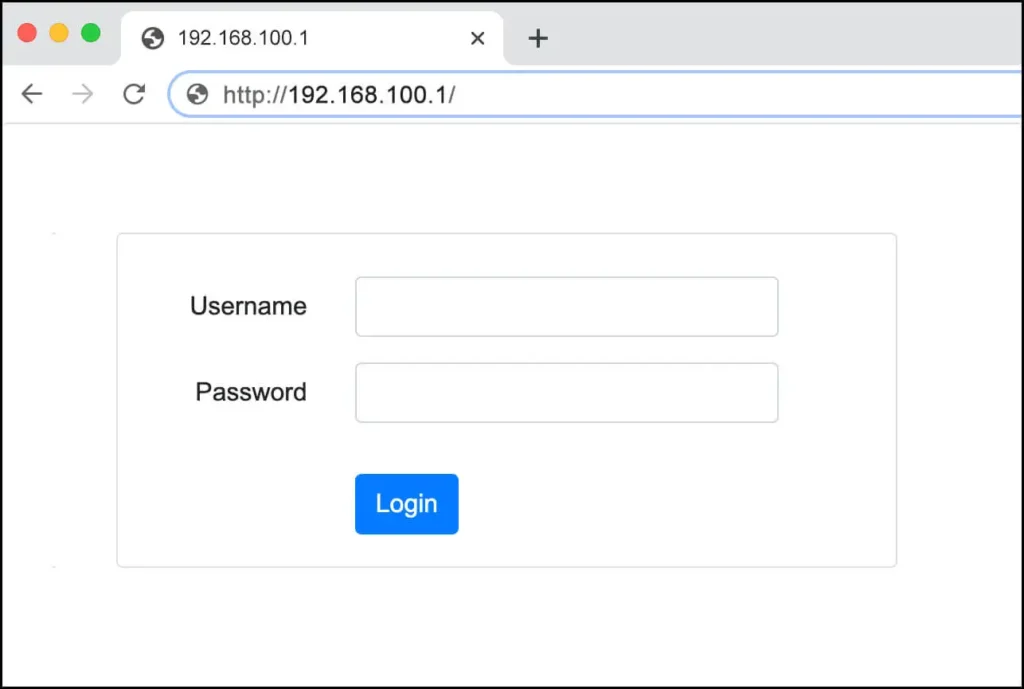
- A login screen should appear within a few seconds.
- Enter your username and password, then click Login or OK.
On Android
- Go to Settings > WiFi and connect to the router’s network.
- Open Chrome and type
192.168.100.1into the address bar. - If the page doesn’t load, check that mobile data isn’t overriding your WiFi connection – some Android phones route traffic through cellular data even while connected to WiFi, blocking access to local IPs.
On iPhone or iPad
- Go to Settings > WiFi and connect to the router.
- Open Safari and enter
192.168.100.1in the address bar. - If you get a blank page or certificate warning, go to Settings > WiFi, tap the (i) icon next to the network, choose Forget This Network, reconnect, and try again.
192.168.100.1 Default Username and Password
If the login credentials were never changed, one of these combinations will almost certainly work:
| Username | Password |
|---|---|
| admin | admin |
| admin | password |
| admin | 1234 |
| admin | (blank) |
The exact default varies by manufacturer, so the most reliable source is the label physically printed on your router’s back or bottom panel. If someone has changed the credentials before and you don’t know the new ones, skip to the factory reset section below.
What Can You Do After 192.168.100.1 Admin Login?
Once logged in, the 192.168.100.1 admin panel gives full control over your local network, including:
- Wireless (WiFi) settings – change your network name (SSID) and password
- Security settings – switch between WPA2, WPA3, or older encryption standards
- LAN and WAN configuration – control how the router talks to your ISP and local devices
- DHCP settings – manage how IP addresses are assigned to connected devices
- Port forwarding – open specific ports for gaming, remote access, or self-hosted services
- Parental controls – restrict access or set time-based limits per device
- Guest network setup – create an isolated WiFi network for visitors
- Firmware updates – install the latest router software and security patches
How to Change WiFi Name and Password at 192.168.100.1
- Log in at 192.168.100.1 using your admin credentials.
- Open the Wireless or WiFi Settings section.
- Enter a new SSID (network name).
- Enter a new password under the WPA2/WPA3 security section.
- Click Save or Apply. Devices will briefly disconnect and reconnect after the change is applied.
192.168.100.1 Not Working? Common Fixes
The page won’t load at all
This usually means 192.168.100.1 isn’t your router’s actual gateway address. Confirm the real address:
- Windows: Open Command Prompt, type
ipconfig, and check “Default Gateway.” - Mac: System Preferences > Network > select your connection > check the router address.
- Android: Settings > WiFi > tap your network > look for “Gateway.”
- iPhone: Settings > WiFi > tap the (i) next to your network > look for “Router.”
If the address shown is different, use that one instead – commonly 192.168.0.1 or 192.168.1.1.
You’re redirected to your ISP’s login page instead
This happens when your modem and router share the same default IP, creating a conflict where the modem intercepts the request first. The fix is to change your router’s LAN IP to a different address (like 192.168.3.1) from its LAN settings after connecting directly via cable.
Login credentials aren’t working
- Double-check for typos — usernames and passwords are case-sensitive.
- Confirm you’re not typing the IP address into the password field by mistake.
- If credentials were changed previously and forgotten, a factory reset is the reliable fix.
The browser sends you to a search engine instead
This happens when the address is typed into the search bar instead of the URL bar. Click directly into the browser’s address bar at the top before typing.
192.168.100.1 vs 192.168.l00.1 – A Common Typing Mistake
A large share of “192.168.100.1 not working” searches actually come down to a simple typo: confusing the lowercase letter “l” with the number “1” or “0” — for example, typing 192.168.l00.1 instead of 192.168.100.1. This misread version isn’t a real, functioning address; if you see it written anywhere (including in some router manuals or third-party guides), treat it as 192.168.100.1. Other common mistakes to avoid:
- No spaces between numbers (avoid “192.168. 100.1”)
- No missing dots (avoid “1921681001”)
- No trailing slashes or extra characters (avoid “192.168.100.1/”)
- Always type it in the browser’s address bar, not a search engine box
How to Factory Reset a Router at 192.168.100.1
If you’re completely locked out, a factory reset restores the original default IP, username, and password.
- Locate the small, recessed Reset button on the router’s back or bottom.
- Using a paperclip or pin, press and hold it for 10–30 seconds (timing varies by model).
- Release once the router’s lights blink or it begins rebooting.
- Wait 1–2 minutes for a full restart.
- Reconnect and log in at 192.168.100.1 using the default credentials from the label.
Important: A factory reset erases all custom settings, including your WiFi name and password, port forwarding rules, and parental controls. Use it only as a last resort.
192.168.100.1 vs Other Common Default Gateway IPs
| IP Address | Typical Use |
|---|---|
| 192.168.100.1 | Cable modems, gateway combo units, and select brands like Arris and Zyxel |
| 192.168.1.1 | The most widely used default across consumer routers globally |
| 192.168.0.1 | Common on Netgear, Linksys, and several other consumer brands |
| 10.0.0.1 | Frequently used by piso WiFi vendo machines in the Philippines, and by some Apple and Google devices |
| 192.168.8.1 | Common on mobile hotspot and 4G/5G router devices |
If 192.168.100.1 doesn’t open your device’s login page, trying one of these alternatives is usually the fastest next step before attempting a factory reset – especially 10.0.0.1 if you’re managing a piso WiFi unit rather than a home router.
Security Tips for the 192.168.100.1 Admin Panel
Since 192.168.100.1 and its default credentials are publicly known, leaving them unchanged creates a real security risk. A few quick steps go a long way:
- Change the default password immediately after your first login.
- Disable remote management unless you specifically need to access your router from outside your home network.
- Update your router’s firmware regularly to patch security vulnerabilities.
- Consider changing the default gateway IP itself (e.g., to 192.168.50.1) as an extra layer of protection against automated attacks targeting known default addresses.
- Set up a separate guest network so visitors never share access with your personal devices.
Frequently Asked Questions
What is 192.168.100.1 used for?
192.168.100.1 is used as the default gateway address to access a router’s or modem’s admin login page, where you can change WiFi settings, security options, and network configuration.
What is the default password for 192.168.100.1?
The most common default login is username admin and password admin, though admin/password and blank passwords are also frequent. Always check the label on your specific router first.
Why is 192.168.100.1 not working on my device?
The most common causes are: your router actually uses a different gateway IP, a typo in the address, being disconnected from the router’s network, or a conflict between your modem and router sharing the same default address.
Is 192.168.100.1 the same as 192.168.l00.1?
No – 192.168.l00.1 is not a valid IP address. It’s a common misreading of 192.168.100.1, caused by confusing a lowercase “L” with the number 1 or 0.
Can I access 192.168.100.1 without internet?
Yes. Since it’s a local, private address, you only need to be connected to the router’s network — an active internet connection is not required.
How do I reset my router if I forgot the 192.168.100.1 password?
Press and hold the router’s physical reset button for 10–30 seconds until it reboots. This restores the factory-default IP, username, and password, but also erases custom settings.
Does 192.168.100.1 work the same way in Pakistan and the Philippines?
Yes, the IP address itself functions identically everywhere since it’s a private network address. The specific router brands and ISPs that default to it vary by country and provider.
Conclusion
192.168.100.1 is a straightforward but important address for anyone managing a router, modem, or gateway device in Pakistan, the Philippines, or anywhere else in the world. Whether you’re changing your WiFi password, setting up parental controls, or troubleshooting a login issue, the admin panel behind this IP gives you complete control over your network. Keep your login credentials somewhere safe, and make it a habit to update your password and firmware regularly to keep your connection secure.
Popular IP-addresses
10.10.10.1 > 20.0.0.1 > 10.1.1.1.0 > 10.0.0.2 > 192.168.178.1